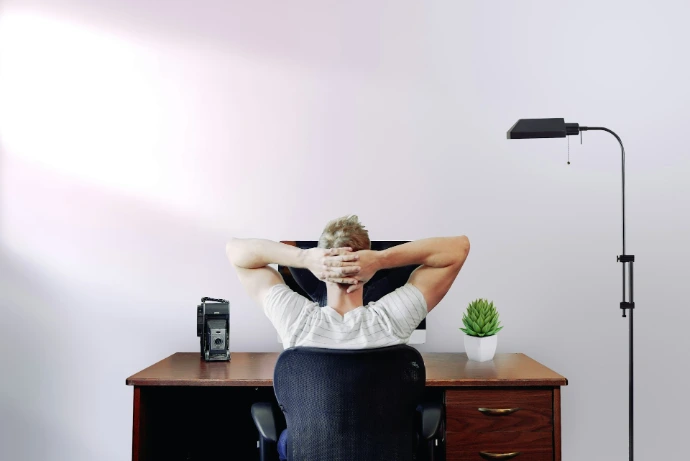
Why Ergonomics Matters
Most professionals work at a desk for 6–10 hours every day.
Small discomfort turns into real problems over time.
Common issues caused by a bad workspace:
- lower back pain
- neck stiffness
- wrist pain
- shoulder tension
- eye strain
- constant fatigue
Many people try to fix this with motivation, breaks, or productivity apps.
But the real solution is improving your ergonomic workspace.
A comfortable workspace allows your body to stay relaxed while your brain stays focused.
Better comfort → better focus → better performance.
This is why professionals who work long hours invest in ergonomic chairs, adjustable desks, and proper monitor setups.
Back Pain from Desk Work
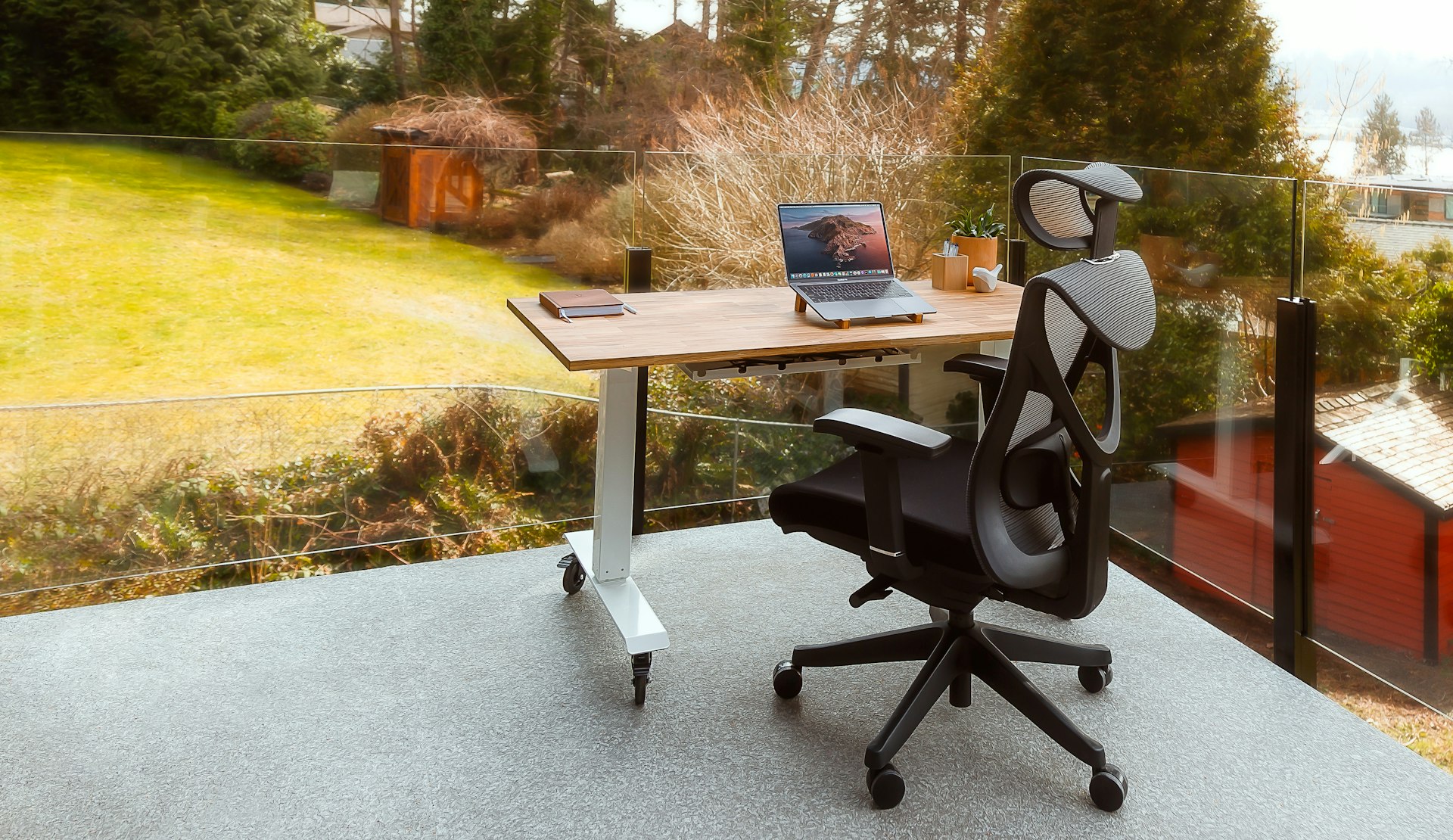
Back pain is the most common problem for people who work at a computer.
The main causes are poor desk ergonomics:
- bad chair support
- wrong desk height
- sitting too long
- monitor too low
- no lumbar support
The Lab Advice: Look for 'Dynamic Lumbar Support'—mechanisms that move with you as you lean. If you are sitting for 6+ hours, a mesh back is superior to foam as it maintains consistent tension and regulates body temperature, preventing the fatigue caused by overheating.
Important factors:
- chair with lumbar support
- correct seat height
- feet flat on the floor
- monitor at eye level
- ability to stand sometimes
Fixing your chair and desk is usually the fastest way to improve comfort.
Back pain is often caused by a bad workspace setup or incorrect desk height.
👉 If you want to fix back pain quickly, start here:
- Best Office Chairs for Long Hours
- Best Chairs for Back Pain
- Standing Desk Benefits
- Desk Height Guide
Most professionals notice a big difference after upgrading their chair.
Posture and Sitting Position
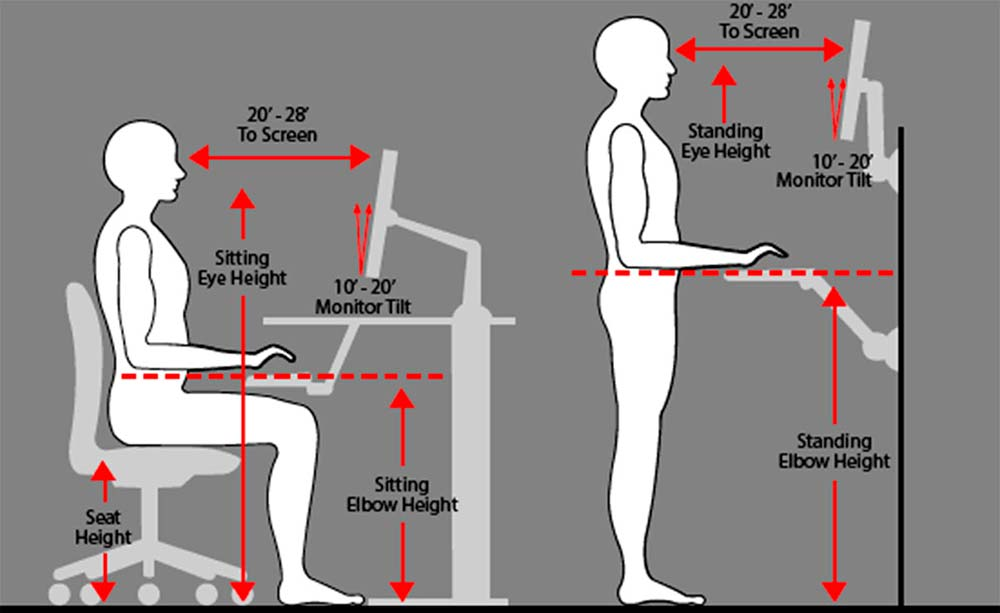
Good posture allows you to work longer without fatigue.
Bad posture forces your muscles to stay tense all day.
This leads to pain, stress, and lower productivity.
Correct sitting position:
- back straight
- shoulders relaxed
- elbows close to body
- screen at eye level
- feet flat on the floor
Your chair, desk, and monitor should work together.
A good posture depends on your workspace setup and the tools you use every day.
If one part is wrong, your posture breaks.
Helpful upgrades:
- adjustable chair
- adjustable desk
- monitor arm
- footrest
👉 Recommended guides:
- Best Monitor Arms
- Standing Desk Guide
- Workspace Setup Guide
Small posture improvements can make a big difference in daily comfort.
Wrist and Hand Fatigue
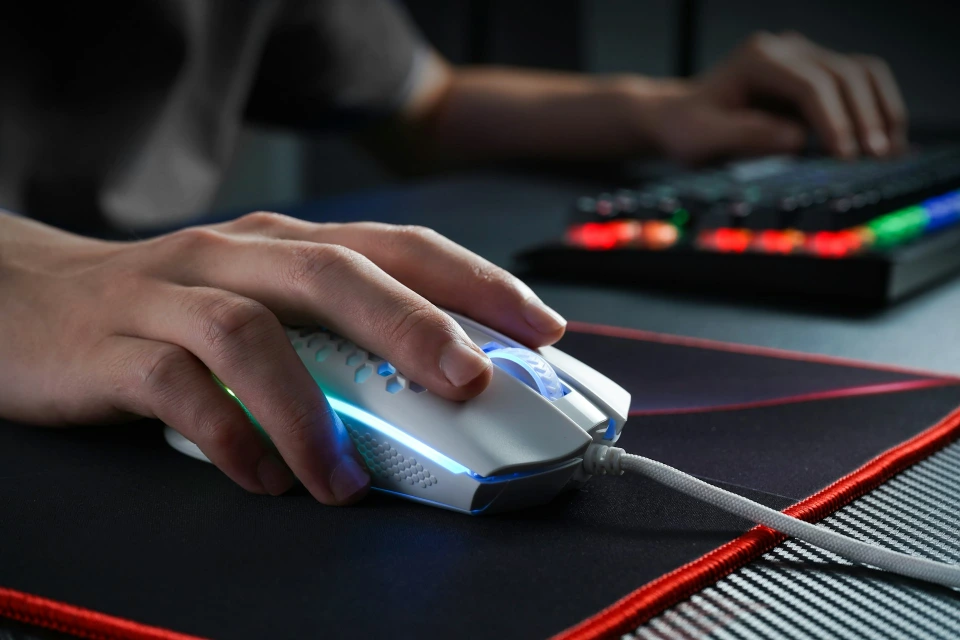
The Solution: We advocate for the Neutral Handshake Position. Switching to a vertical mouse or a high-profile mechanical keyboard with a wrist rest aligns your joints. It’s not just about comfort; it’s about reducing the 'Micro-Travel' fatigue that slows down your typing speed by the end of the week.
Common problems:
- keyboard too high
- mouse too small
- wrist bending
- no arm support
- hard desk surface
These issues slowly increase strain.
An ergonomic keyboard and mouse reduce stress on your hands.
Good upgrades:
- ergonomic mouse
- mechanical keyboard
- wrist rest
- desk mat
Many professionals only notice how much strain they had after switching to better tools.
Input devices should always be part of a complete ergonomic workspace.
👉 Recommended guides:
- Best Ergonomic Mouse
- Best Mechanical Keyboards
- Wrist Support Guide
- Desk Accessories Guide
Better input devices make long work sessions much easier.
Eye Strain and Screen Comfort
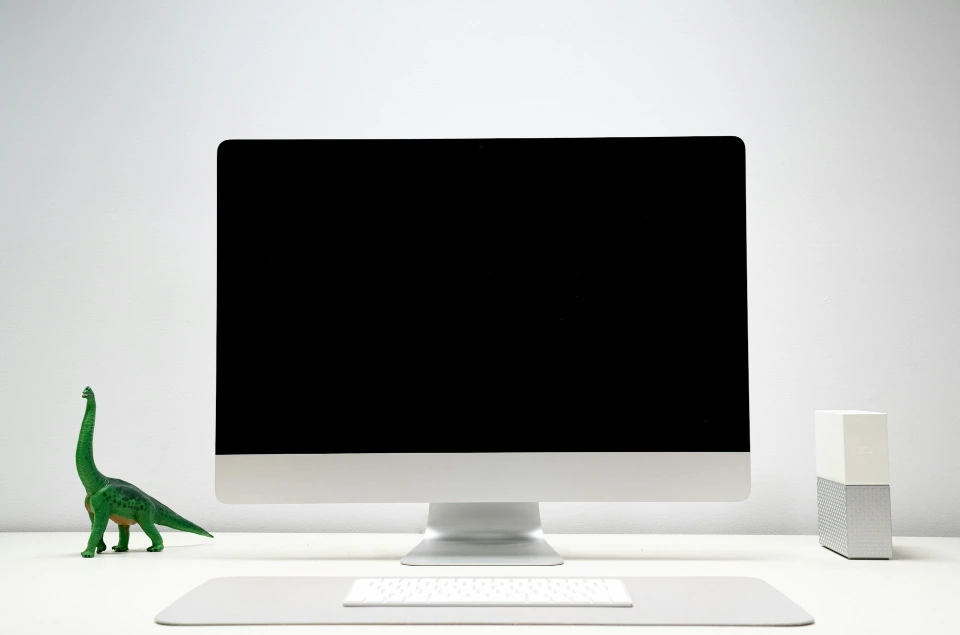
Eye strain is another common problem in desk work.
Causes:
- monitor too low
- screen too close
- bad lighting
- small laptop screen
- long hours without breaks
A proper monitor setup should allow:
- eye level screen
- correct distance
- no glare
- good brightness
- enough screen space
Helpful upgrades:
- monitor arm
- larger monitor
- dual monitor setup
- desk lighting
👉 Recommended guides:
- Best Monitor Arms
- Dual Monitor Setup
- Monitor Setup Guide
- Workspace Environment Guide
The Lab Focus Hack: To prevent 'Digital Eye Strain,' we recommend the 20-20-20 Rule. Every 20 minutes, look at something 20 feet away for 20 seconds. Pair this with a monitor arm that allows you to adjust depth—your screen should be exactly one arm's length away to keep your eyes from constantly 'hunting' for focus.
A better screen setup reduces eye strain, improves focus, and allows longer deep-work sessions.
Screen comfort depends on monitor position, lighting, and workspace environment.
How to Build an Ergonomic Workspace
The "Ecosystem" Comparison Table
Ergonomic Tier | Investment Focus | Primary Benefit | ROI for Professionals |
|---|---|---|---|
The Foundation | Ergonomic Chair | Spinal Alignment | Eliminates end-of-day back throb. |
The Motion Tier | Standing Desk | Metabolic Boost | Keeps energy high for afternoon sprints. |
The Input Tier | Vertical Mouse/Mech Keyboard | Joint Longevity | Prevents RSI and increases WPM. |
Common Ergonomic Mistakes
Many people ignore ergonomics until pain starts.
Common mistakes include:
using a cheap chair
working only on a laptop
monitor too low
desk too high or too low
no arm support
bad lighting
cluttered desk
bad mouse shape
These small mistakes create daily friction that reduces productivity.
Fixing them is one of the easiest ways to improve work performance.
Your goal is not a perfect desk.
Your goal is a workspace that allows comfortable work for many hours.
Best Ergonomic Tools & Guides
If you want to improve comfort and reduce fatigue, start with the most important upgrades.
👉 Best Office Chairs for Long Hours
👉 Best Monitor Arms
These guides compare proven tools used by professionals.
Instead of guessing, you can choose setups that are already known to work.
Ergonomics is an iterative process. Start with the 'Core'—your chair—and optimize the 'Peripherals' as your workflow evolves.